Websites live in the Etchedy library, in their own Sites view. You can look at everything a website contains before anything touches your site.
Open the Sites view
- Open the libraryIn the Etch builder, click the purple E. See Open the library in Etch.
- Choose SitesPick Sites in the menu at the top of the panel. Not there? Switch it on under Etchedy → Library settings.
- Pick a websiteEach card shows the site, its category and how many pages and dynamic pages it has. Click one to open it.
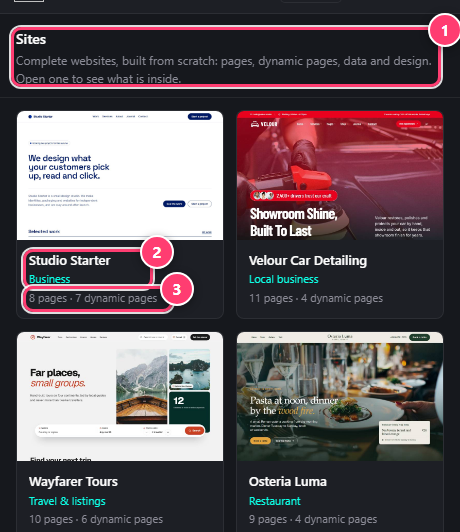
- Sites: complete websites, built from scratch.
- The site name and its category, such as Business or Restaurant.
- How many pages and dynamic pages it has.
Look inside a website
An open website shows a short description and chips for what it holds: pages, templates, demo posts, forms, field groups, entries and the size of its media. It also lists the plugins it uses, marked required or optional. Below, every page is listed with a preview.
Preview the whole site
Click Preview site to look through every page and dynamic page, top to bottom, in a browser frame. Use the arrow keys to move from one page to the next. Nothing is imported while you look.
Click Import Site. It opens a step-by-step window, and nothing changes until you confirm on the Review step. On the free plan the button reads Unlock with Pro.