With hundreds of patterns in the library, finding the right one should take seconds. The panel gives you two views, a search box and filters.
Tree view and grid view
Use the two buttons at the top of the panel to switch.
- Tree view lists the library like folders: section, then category, then pattern, with a count next to each folder. It is the quickest way to scan a whole category.
- Grid view shows pattern cards with a thumbnail. It is best when you choose by looks. Each card carries a label for its type (Layout, Template and so on).
Search
Type in the search box and the list narrows as you type. Search looks at the pattern name and its tags and description, so words like hero, pricing, footer or form work. If nothing matches, the panel says so and offers a Clear search button.
Filters
Grid view adds filters under the search box:
- All types narrows to one type, such as Layout or Component.
- All folders narrows to one of your own folders. It appears when Folders is switched on, see Folders and pins.
- All brands narrows to patterns tagged with a brand.
The dropdown at the top left of the panel (All, Layouts, Elements, Components, Templates) limits the panel to one section of the library. When you filter, the footer shows how many items match, for example 7 of 549 items.
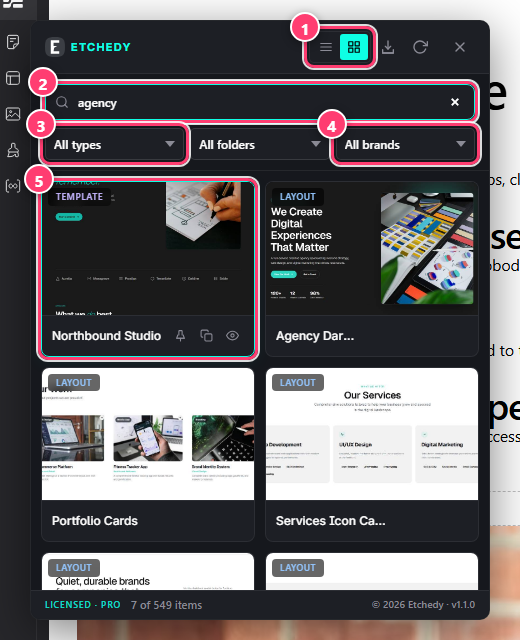
- The view buttons: tree on the left, grid on the right.
- The search box. Here the word agency is typed.
- Filter by type.
- Filter by brand.
- A pattern card, with pin, copy and preview underneath.
Card actions
Point at a card in grid view to use its three buttons. Clicking the card itself copies it, exactly like the tree.
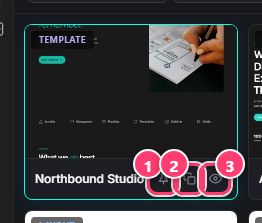
- Pin the pattern to your pinned list.
- Copy the pattern, ready to paste.
- Preview the live pattern in a new tab.
Pick a section from the top-left dropdown, then switch to grid and type one word. That is usually two clicks and a word.