


 Compare Features LandingLanding page, 1 page
 Flowline SaaS LandingLanding page, 1 page
 Prismo Creative AgencyCreative, 1 page
 Velour Car DetailingLanding page, 1 page
Folders and pins
Pins and folders keep the patterns you use all the time one click away.
Pins
Point at any pattern and click the Pin button. Pinned patterns are collected at the top of the panel. Click Pin again to unpin. Pins are personal: each user on the site has their own.
Folders
Folders let you group patterns your own way, for example one folder per client. They are a Pro tool.
What you need
Switch on Etchedy → Library settings → Agency tools → Folders.
- Add a pattern to a folderPoint at a pattern and click the Add to folder button. A small menu opens.
- Pick or create a folderChoose an existing folder, or choose New Folder and type a name.
- Find it laterYour folders appear in the tree with a count. Click a folder name to rename it, or use its delete button to remove it. In grid view, the All folders filter shows one folder at a time.
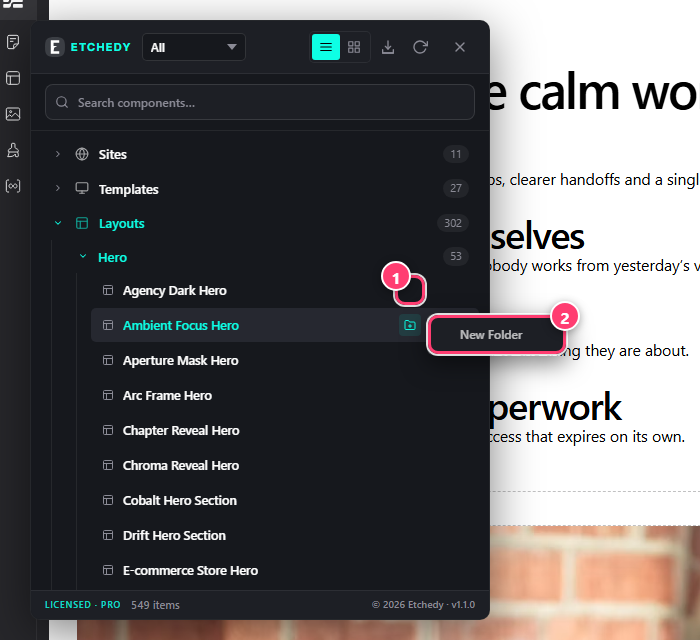
- The Add to folder button on a pattern row.
- The menu with the New Folder option.
Deleting a folder never deletes the patterns in it.
Clear everything
To start over, use Etchedy → Tools → Reset pins and folders. You can reset only yours or everyone’s. Library items are not touched. See Tools and maintenance.
Was this helpful?