


 Compare Features LandingLanding page, 1 page
 Flowline SaaS LandingLanding page, 1 page
 Prismo Creative AgencyCreative, 1 page
 Velour Car DetailingLanding page, 1 page
Import, steps 5 and 6: data and design
Step 5: Data
Websites that store their own content, such as projects or tours, bring custom post types, taxonomies and fields. The Data step decides where they go. A website without them skips straight to Design.
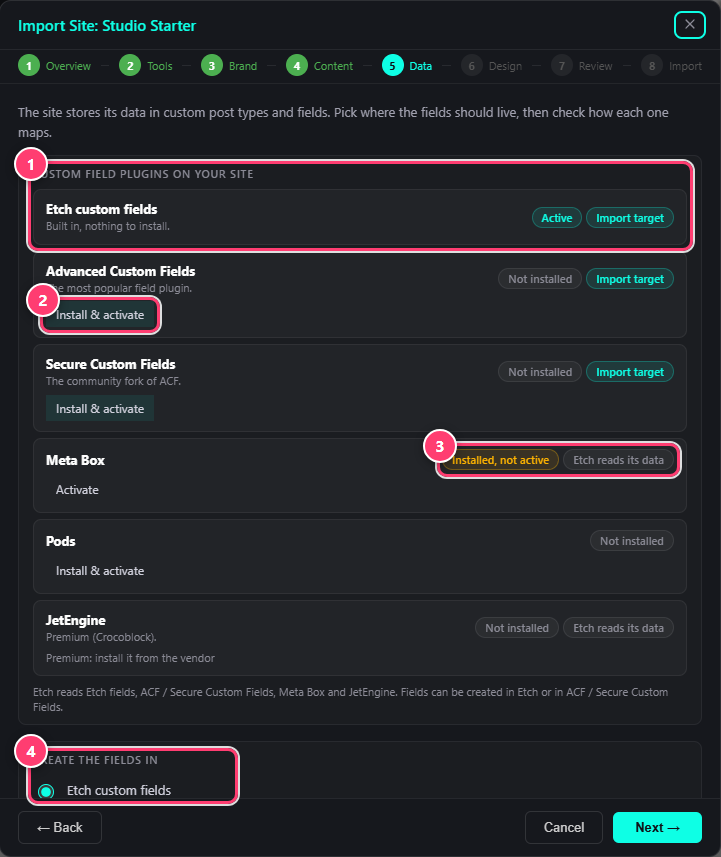
- The custom field plugins found on your site.
- Install and activate a field plugin from the window.
- Plugins Etch can read, but that the import does not create fields in.
- Where the new fields are created.
- Create the fields in Etch’s built-in custom fields (nothing to install) or in Advanced Custom Fields / Secure Custom Fields.
- Field mapping. Check how each field of the website maps to a field on your site. Dynamic tags in templates and loops follow the mapping.
- Post types and taxonomies are created for you. Existing ones with the same name are reused, never replaced.
- Etch also reads Meta Box and JetEngine data, so those plugins are shown when you have them.
Step 6: Design
The design runs on Automatic.css. Choose one of two ways:
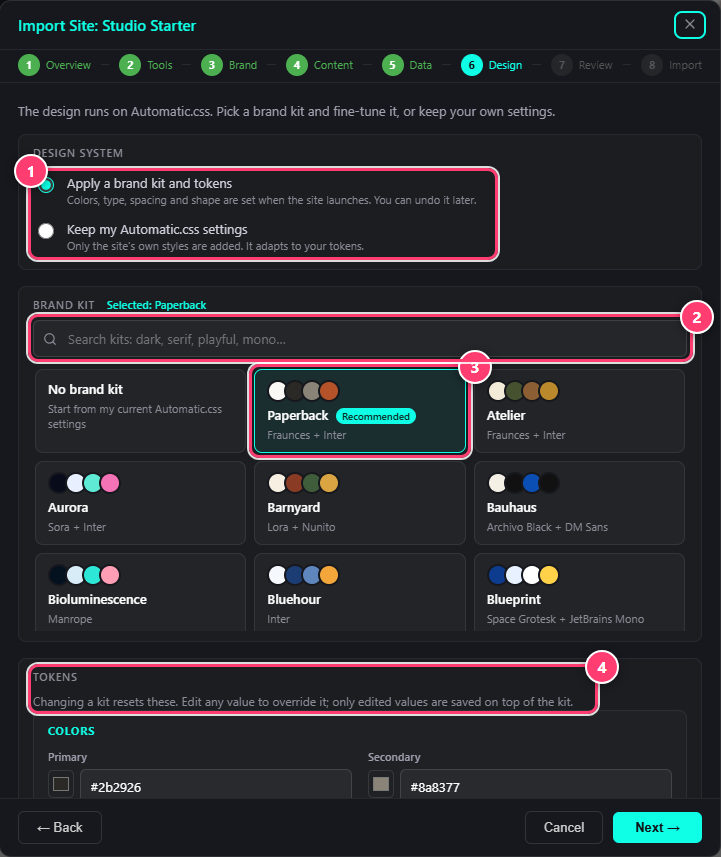
- Apply a brand kit and tokens, or keep your Automatic.css settings.
- Search the kits by mood or font.
- The kit recommended for this website, selected.
- Tokens: fine-tune colours, type, spacing and shape.
- Apply a brand kit and tokens. Pick the recommended kit, any other kit, or No brand kit to start from your current settings. Then fine-tune the tokens. Changing the kit resets them; only the values you edit are saved on top of the kit. You can undo it later.
- Keep my Automatic.css settings. Only the website’s own styles are added, and it adapts to your tokens.
More about kits in Brand kits: what a kit sets.
Next
Continue with steps 7 and 8: review and import.
Was this helpful?