


 Compare Features LandingLanding page, 1 page
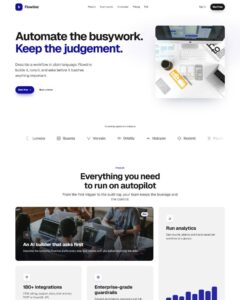 Flowline SaaS LandingLanding page, 1 page
 Prismo Creative AgencyCreative, 1 page
 Velour Car DetailingLanding page, 1 page
Import, steps 7 and 8: review and import
Step 7: Review
The Review lists everything the import will add: pages and their addresses, templates, demo posts, page roles, the plugins chosen for each job, forms, post types, fields, demo entries and media, Etch styles, loops and components, and the design.
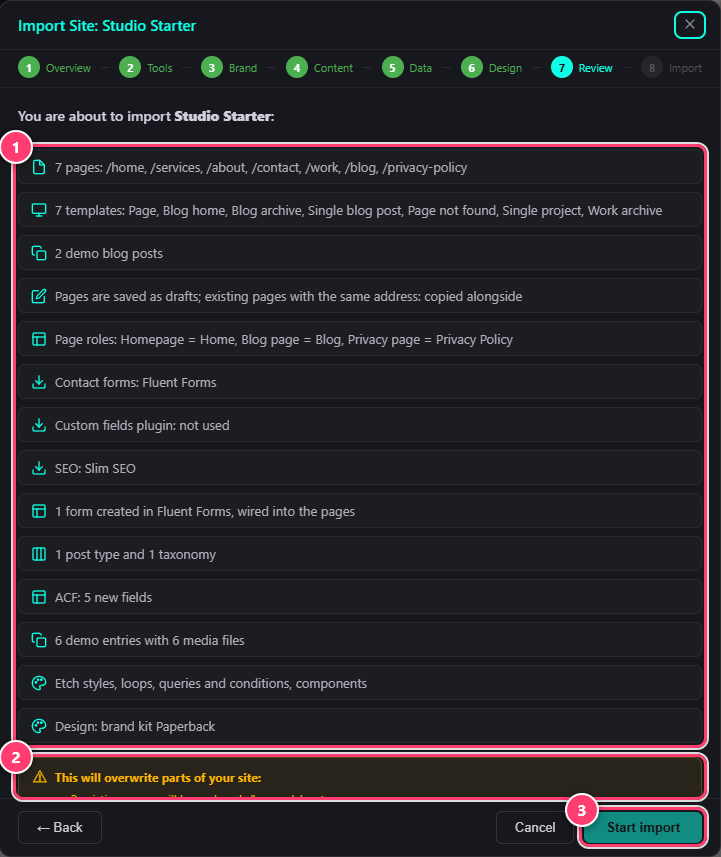
- Everything the import will add.
- What it will overwrite on your site.
- Start import, once both boxes are ticked.
A yellow box lists what changes on your site, for example templates with the same name, your Automatic.css settings, your homepage setting and your site name. Under Before you continue, tick both boxes:
- I have a full backup of this site. Etchedy logs what it creates and overwrites so you can undo, but a full backup is the only complete safety net. If a backup plugin is installed, run it now.
- I understand this imports content and overwrites existing pages and settings.
Then click Start import.
Step 8: Import
A progress bar follows every step as it runs: downloading and verifying the website, your name and logo, Etch loops and queries, components, post types, custom fields, images, the form, pages and dynamic pages, entries with their field values, Etch styles and conditions, and a final pass over page roles, links and caches.
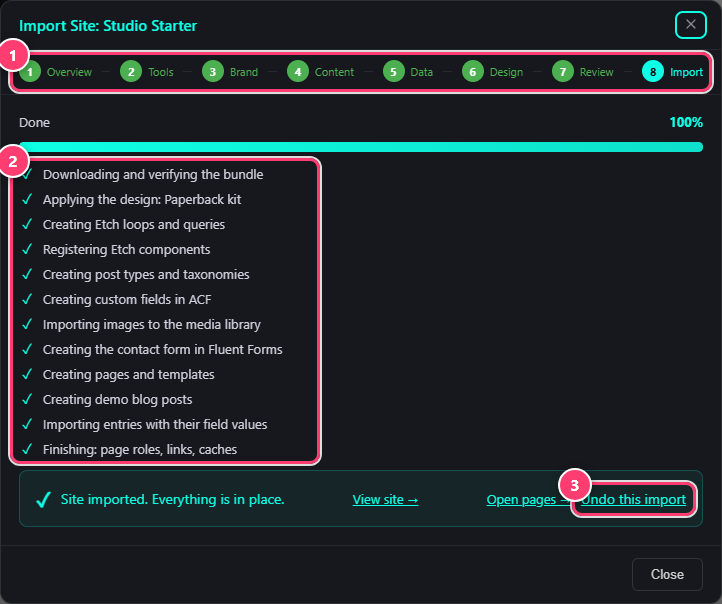
- The eight steps, from Overview to Import.
- Each step of the import, ticked off as it completes.
- Undo this import: puts your site back as it was before.
When it is done
- View site opens the front end.
- Open pages takes you to the imported pages to edit them in Etch.
- Undo this import removes it again. See Undo an import and fix problems.