


 Compare Features LandingLanding page, 1 page
 Flowline SaaS LandingLanding page, 1 page
 Prismo Creative AgencyCreative, 1 page
 Velour Car DetailingLanding page, 1 page
Apply, undo and restore
Apply a kit
Click Apply on a kit. The button shows Applying… while Etchedy writes the kit into your Automatic.css settings, then the kit is marked Active and a message confirms the canvas was updated.
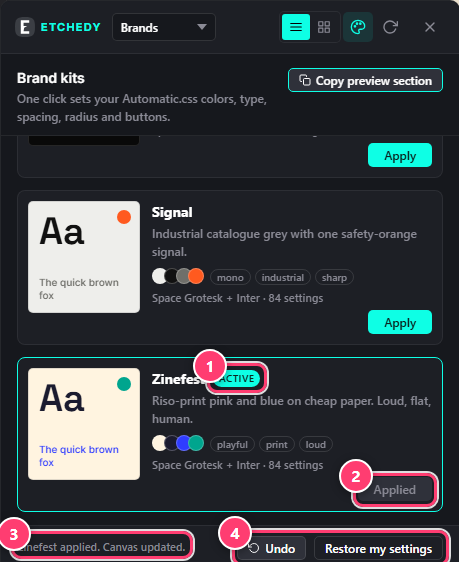
- The kit in use is marked Active.
- Its button reads Applied.
- The confirmation: the canvas updates at once.
- Undo and Restore my settings.
Open any page and the new colours, fonts, spacing and corners are already there, on patterns you pasted earlier too. Nothing on your pages is rewritten: they read the tokens, and the tokens changed.
Undo
Undo steps back one change, for example to the kit you had before. Use it as often as you like.
Restore my settings
Restore my settings brings back the Automatic.css settings you had before you applied your first kit. The panel then says Your own settings are in use.
A kit is a starting point. Change any colour, size or radius in the Automatic.css dashboard afterwards; the kit does not lock anything.
If a kit will not apply
- Automatic.css is not active. The panel says so: kits write to its settings, so activate it first.
- Preview only. Applying a kit is part of Etchedy Pro. Activate your license under Etchedy → License.