
 Compare Features LandingLanding page, 1 page
 Flowline SaaS LandingLanding page, 1 page
 Prismo Creative AgencyCreative, 1 page
 Velour Car DetailingLanding page, 1 page
A tour of the Etchedy admin
The Etchedy admin screen lives under Etchedy in the WordPress menu. It has seven tabs along the top.
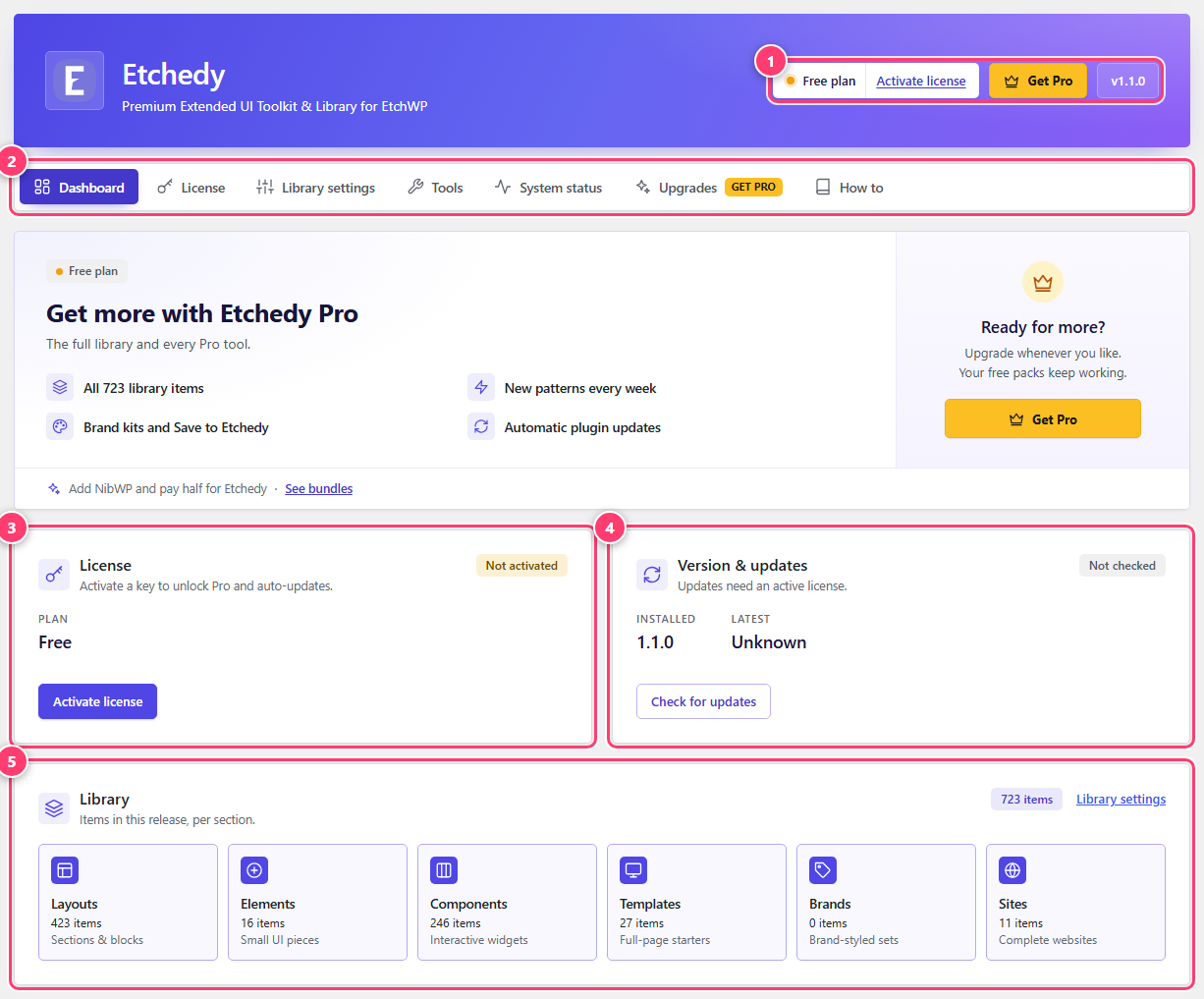
- The banner: your plan and the plugin version.
- The tabs. Click any one to switch.
- License status.
- Version and updates.
- The library, counted per section.
The tabs
- Dashboard. Your plan, the installed and latest version, and the size of the library.
- License. Activate, check or release your license. See Activate your license.
- Library settings. Choose what the builder panel shows and switch the agency tools on. See Library settings.
- Tools. Export and import your folders and saved items, reset pins and folders, re-sync the library, and the uninstall options. See Tools and maintenance.
- System status. Server checks Etchedy depends on, with a report you can copy for support. See System status and troubleshooting.
- Upgrades. Compare the Pro plans. If you are already on Pro this shows your plan.
- How to. A nine-step guide inside WordPress with the click path for each step, plus quick fixes for common problems.
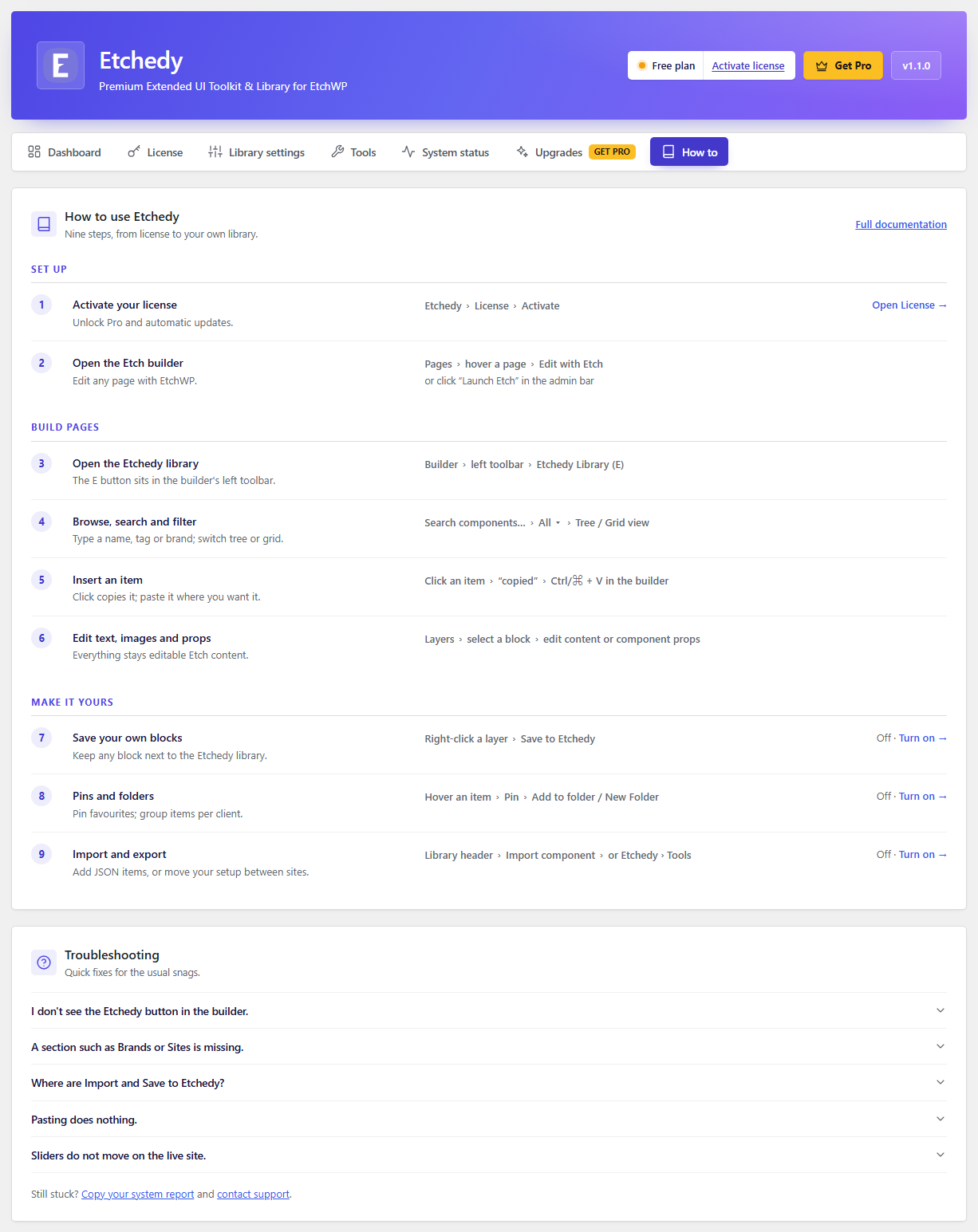
- A step title and a one-line description.
- The click path to follow in WordPress or in the builder.
- A link that jumps straight to the right tab.
Was this helpful?