


 Compare Features LandingLanding page, 1 page
 Flowline SaaS LandingLanding page, 1 page
 Prismo Creative AgencyCreative, 1 page
 Velour Car DetailingLanding page, 1 page
Import, steps 1 and 2: checks and tools
Click Import Site on a website. The window has eight steps along the top: Overview, Tools, Brand, Content, Data, Design, Review and Import. You can go back to any finished step.
Step 1: Overview
The Overview shows what the website contains and runs a compatibility check on your site:
- Etch and Automatic.css are active and new enough.
- The uploads folder is writable, so images can be imported.
- The server can unpack zip files (ZipArchive or WordPress’s own PclZip).
- Memory and backups. A PHP memory limit under 128M and a missing backup plugin are shown as warnings.
Anything marked ✕ stops the import. Fix it, then press Check again. If you imported a website before, the Overview tells you so.
Step 2: Tools
A website may use a few plugins: a form plugin for the contact page, a custom fields plugin, an SEO plugin. The Tools step lists each job, says whether it is required or optional, and shows what is already detected on your site.
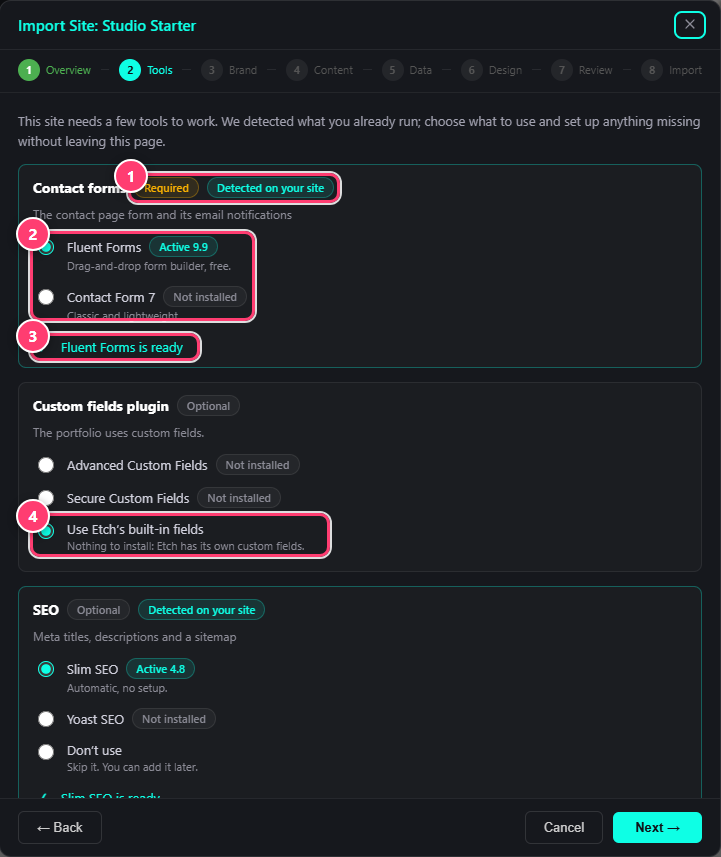
- Required or optional, and whether your site already has a plugin for it.
- Pick the plugin you want for this job.
- Ready: the plugin is installed and active.
- Use Etch’s built-in fields: nothing to install.
- Pick a plugin for each jobKeep what you already run, or choose another option. For custom fields you can use Etch’s built-in fields and install nothing.
- Install what is missingPress the button next to a plugin to install and activate it without leaving the window, or use Install & activate all. Premium plugins are installed from their vendor.
- Skip what you do not needOptional tools can be skipped and added later. The import goes on without them.
Next
Continue with steps 3 and 4: brand and content.
Was this helpful?