

 Compare Features LandingLanding page, 1 page
 Flowline SaaS LandingLanding page, 1 page
 Prismo Creative AgencyCreative, 1 page
 Velour Car DetailingLanding page, 1 page
Save to Etchedy
Save to Etchedy puts your own blocks beside the ones we ship. Build a section once, save it, and paste it on any page or any site that has Etchedy.
What you need
This is a Pro tool. Switch it on under Etchedy → Library settings → Agency tools → Save to Etchedy. Only administrators see it.
Save a block
- Select a layerIn the builder, click the layer you want to keep in the Layers panel. It can be a whole section or any part of one.
- Right-click itRight-click the layer and choose Save to Etchedy in the menu.
- Fill in the formGive it a name, pick a type and a folder, and add a category, brand, tags and a description if you like. Only the name is required.
- SaveClick Save to library. The item appears in the library panel straight away.
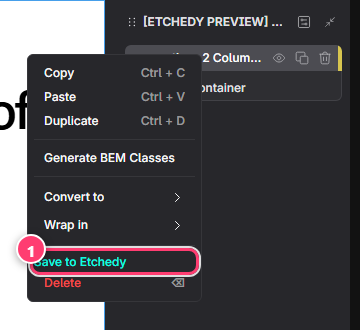
- Save to Etchedy, in green, in the menu you get when you right-click a layer.
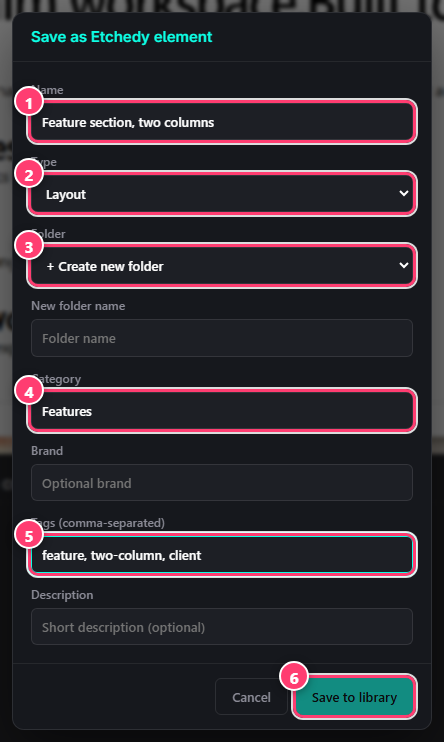
- Name: how it will appear in the panel.
- Type: Layout, Element, Component or Template.
- Folder: one of your folders, or create a new one.
- Category: where it sits in the tree.
- Tags, comma separated, so search finds it.
- Save to library.
Use and manage your items
- Your saved items show up in the panel under their type and category, and in your folder. Click one to copy it, then paste as usual.
- Point at one of your own items and you get Edit and Delete buttons that other items do not have.
- Your items are never locked. They keep working even if your license lapses.
Name things for search
Search looks at tags too. Tag a saved block with the client name and the section type, for example aya, hero, dark.
Was this helpful?