


 Compare Features LandingLanding page, 1 page
 Flowline SaaS LandingLanding page, 1 page
 Prismo Creative AgencyCreative, 1 page
 Velour Car DetailingLanding page, 1 page
Library settings
The Library settings tab controls what you see in the builder. Nothing here deletes anything. A switch only hides or shows.
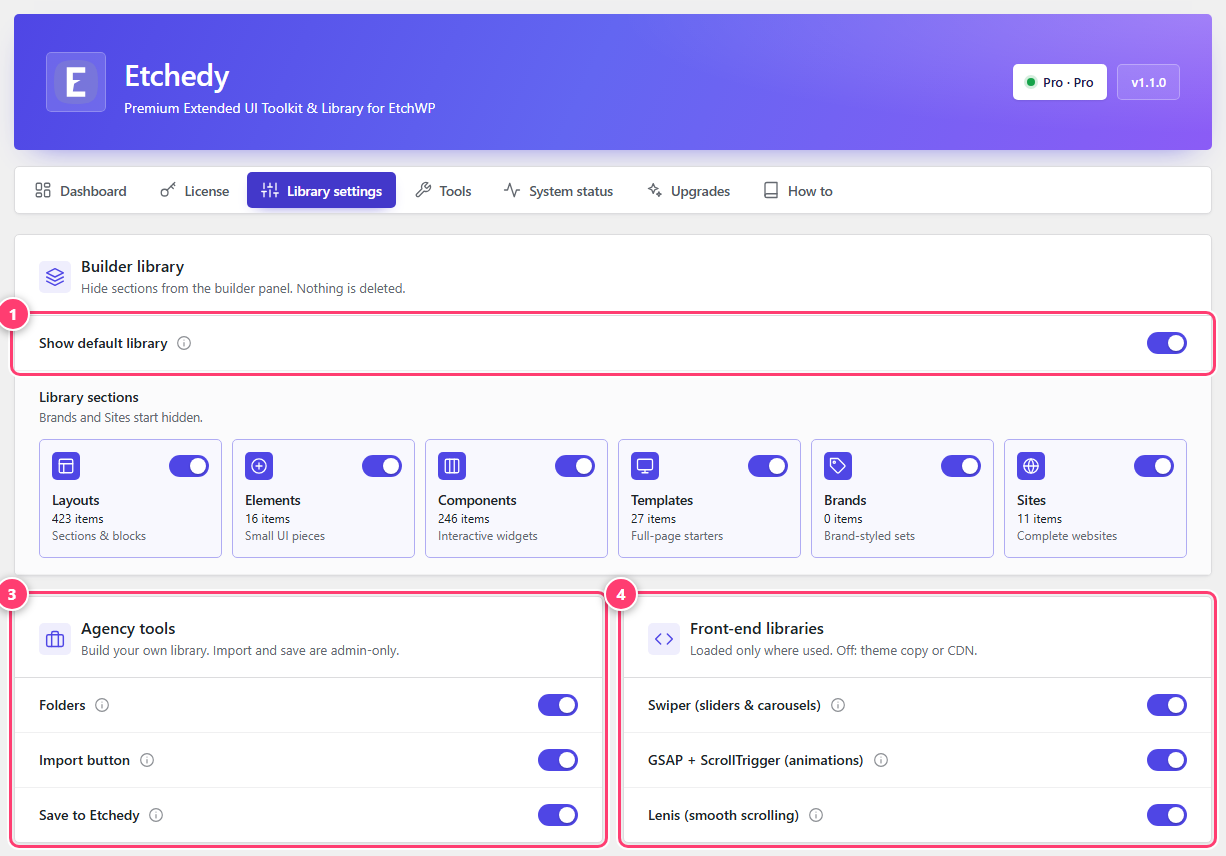
- Show default library. Turn it off to see only the items you saved or imported.
- Library sections: one switch per tier.
- Agency tools: Folders, Import button and Save to Etchedy.
- Front-end libraries: the scripts patterns can load on your live site.
Builder library
- Show default library. Switch it off to hide everything we ship and show only your own saved and imported items.
- Library sections. One switch per section with its item count: Layouts, Elements, Components and Templates. Turn off a section you never use to keep the panel short. Brands and Sites start hidden and are not part of the library yet.
Agency tools
Build your own library. These three switches are Pro features and the buttons only appear for administrators.
- Folders: personal folders to group and filter items. See Folders and pins.
- Import button: paste JSON to add a block. See Import and export.
- Save to Etchedy: right-click any block to save it. See Save to Etchedy.
Front-end libraries
Some patterns need a small script on your live site. Etchedy loads each one only on pages that use it.
- Swiper for sliders, carousels and swipeable galleries.
- GSAP and ScrollTrigger for scroll and timeline animations.
- Lenis for smooth, inertia-based page scrolling.
If your theme already loads one of them, or you want to serve it from a CDN, switch it off here.
Sliders not moving on the live site?
Keep Swiper switched on, or load it yourself in your theme. Patterns with sliders need it.
Was this helpful?