


 Compare Features LandingLanding page, 1 page
 Flowline SaaS LandingLanding page, 1 page
 Prismo Creative AgencyCreative, 1 page
 Velour Car DetailingLanding page, 1 page
Browse and preview kits
Open the brand kits
- Open the libraryIn the Etch builder, click the purple E to open the Etchedy library.
- Click the palette iconIt sits in the panel header. The panel switches to Brand kits.
- Search by moodType dark, serif, playful or mono, or a font name. The count shows how many kits match.
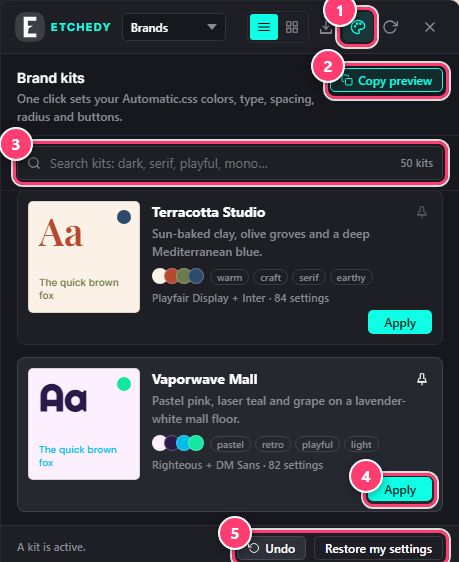
- The Brand kits button (palette icon) in the panel header.
- Copy preview: a test section for your clipboard.
- Search kits by mood, colour or font.
- Apply sets the kit on your site. The pin keeps a kit at the top.
- Undo steps back one change. Restore my settings brings back what you had before your first kit.
Read a kit card
- The specimen. “Aa” and a line of text in the kit’s fonts and colours.
- Name and mood. A one-line description, the colour dots and tags such as warm, serif or mono.
- Font pair and settings. For example Playfair Display + Inter · 84 settings: how many Automatic.css settings the kit writes.
Pin your favourites
Click the pin on a kit to keep it at the top of the list, under its own heading. Pins are personal: each user has their own.
Test a kit on real blocks
- Copy the preview sectionClick Copy preview. Etchedy puts a full section of placeholder headings, text, buttons and cards on your clipboard.
- Paste it on the canvasClick the Etch canvas and press Ctrl+V (⌘+V on a Mac).
- Switch kits and watchApply kits one after another and see the section change. Delete it when you are done.
Was this helpful?