


 Compare Features LandingLanding page, 1 page
 Flowline SaaS LandingLanding page, 1 page
 Prismo Creative AgencyCreative, 1 page
 Velour Car DetailingLanding page, 1 page
Your first pattern
This is the whole workflow: find a pattern, click it, paste it. Everything you paste is normal, fully editable Etch content.
Find a pattern
Open the library as shown in Open the library in Etch. Click Layouts, then a category such as Hero. Point at any pattern name and a preview card appears next to the panel.
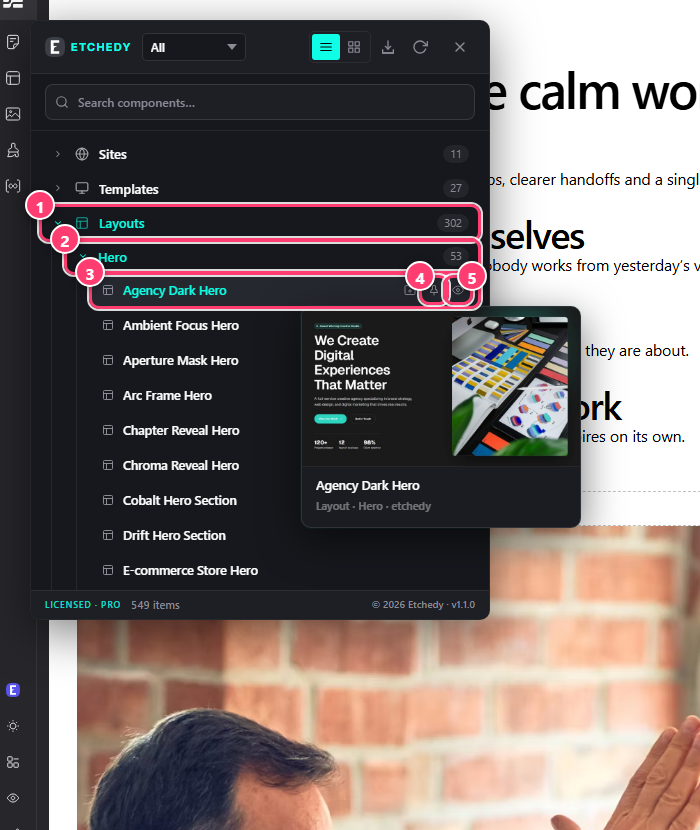
- The Layouts section.
- The Hero category inside it.
- A pattern. The row highlights as you point at it.
- Pin: keeps the pattern in your pinned list.
- Preview: opens the live preview in a new tab.
Copy it
Click the pattern name. Etchedy copies the pattern and shows a message: the name followed by copied, and a reminder to press Ctrl+V.
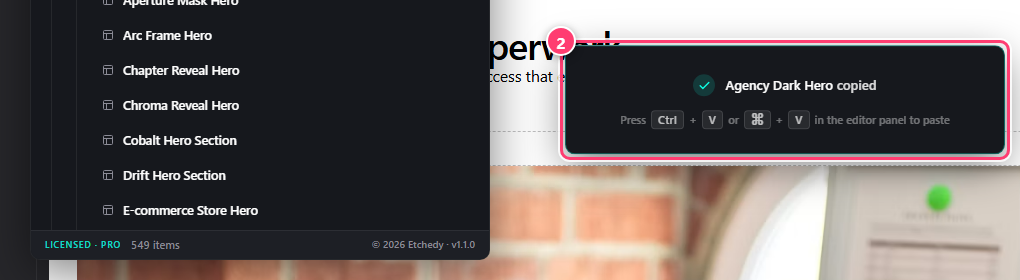
- The pattern you clicked.
- The confirmation: press Ctrl + V (or ⌘ + V on a Mac) in the editor panel.
Paste it into your page
- Choose where it goesClick a layer in the Layers panel on the right. The pattern is pasted inside the selected layer.
- PastePress Ctrl + V (or ⌘ + V).
- Check the Layers panelYour pattern appears as a new section with its own layers, ready to edit.
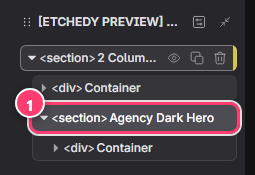
- The pasted pattern, now a normal section in your Layers panel.
Click once inside the builder canvas or the Layers panel first, then press the shortcut again. The clipboard only works while the builder window has focus.
Make it yours
Select any layer to change its text, images, links and settings. Patterns that are built from repeating parts (cards, tabs, accordion rows) use Etch components, so you edit their content in the component props. Colors, fonts and spacing follow your ACSS tokens, see Patterns and your ACSS tokens.