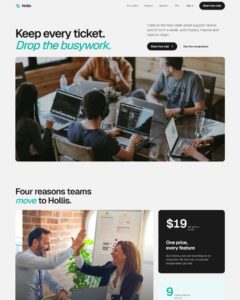
 Compare Features LandingLanding page, 1 page
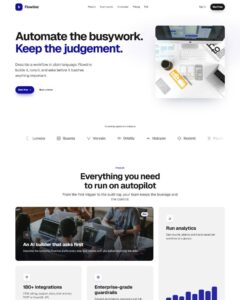 Flowline SaaS LandingLanding page, 1 page
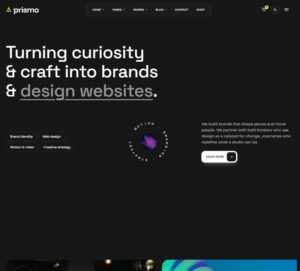 Prismo Creative AgencyCreative, 1 page
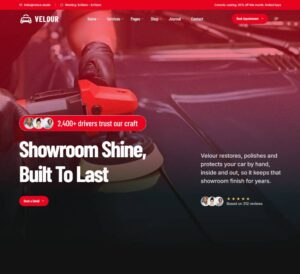 Velour Car DetailingLanding page, 1 page
Previews and quick look
A preview is the real pattern rendered in a browser, not a screenshot. Use it to check spacing, motion and how it looks on a phone.
From the builder
Point at any pattern in the panel to see a small preview card. Click the Preview button on the row (the eye icon) to open its page on etchedy.com in a new tab. In grid view the same Preview button sits under each card.
On the pattern page
Every pattern has its own page on etchedy.com with the live preview, the pattern code, a short description and what is behind it: the options you can set and the component props you can edit.
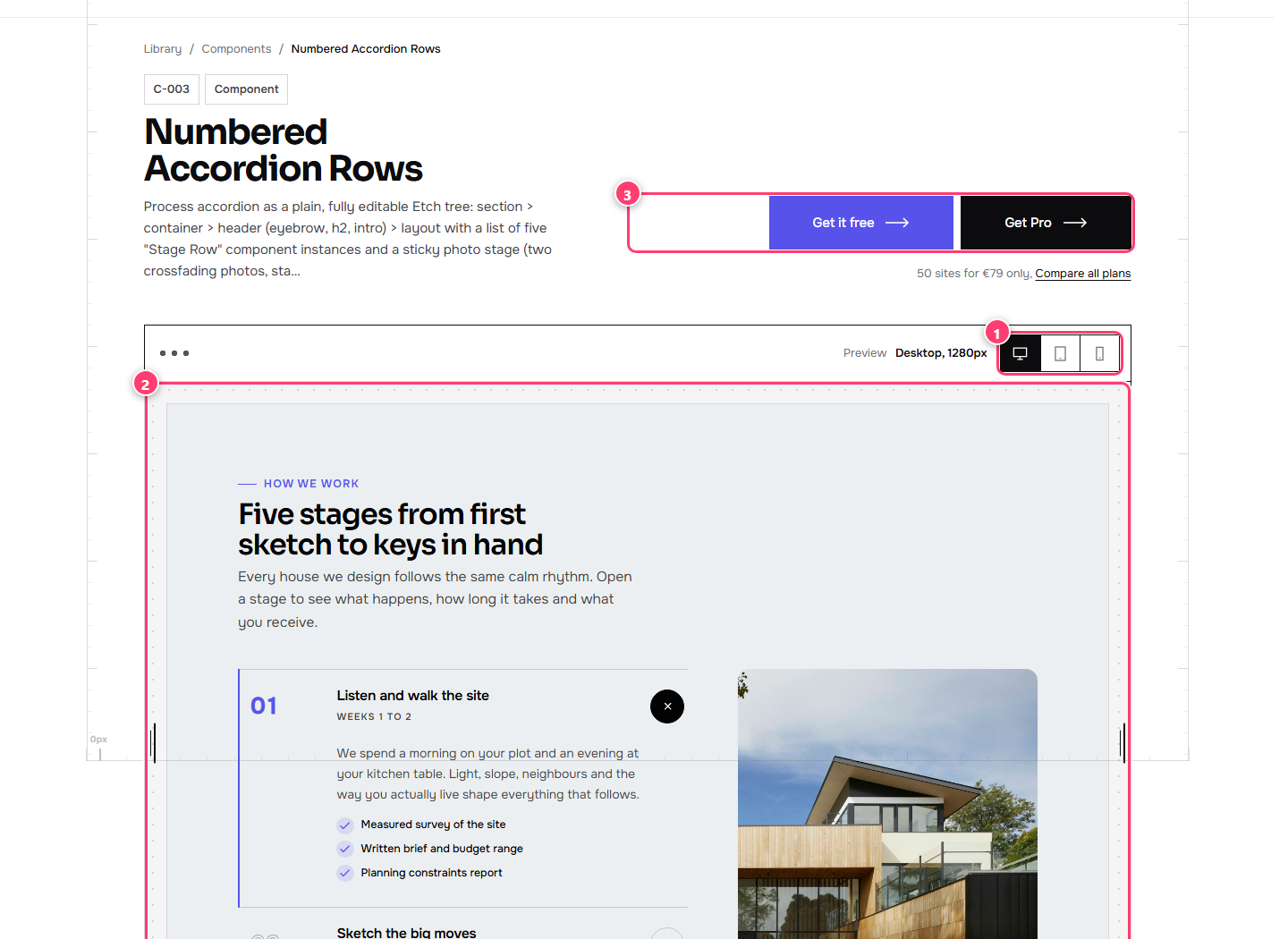
- The device buttons: desktop, tablet and phone.
- The live preview. Drag the handles on its left and right edges to resize it.
- Actions: get a free pattern, or upgrade to Pro.
The device buttons switch the preview between desktop (1280px), tablet (834px) and phone (390px). You can also drag either edge of the preview to any width in between and watch the layout respond.
Quick View
In the library on etchedy.com, point at a card and click Quick View to open the same live preview full screen without leaving the list. It has the same device buttons, a Close button, and a button to unlock the pattern if it is a Pro one.
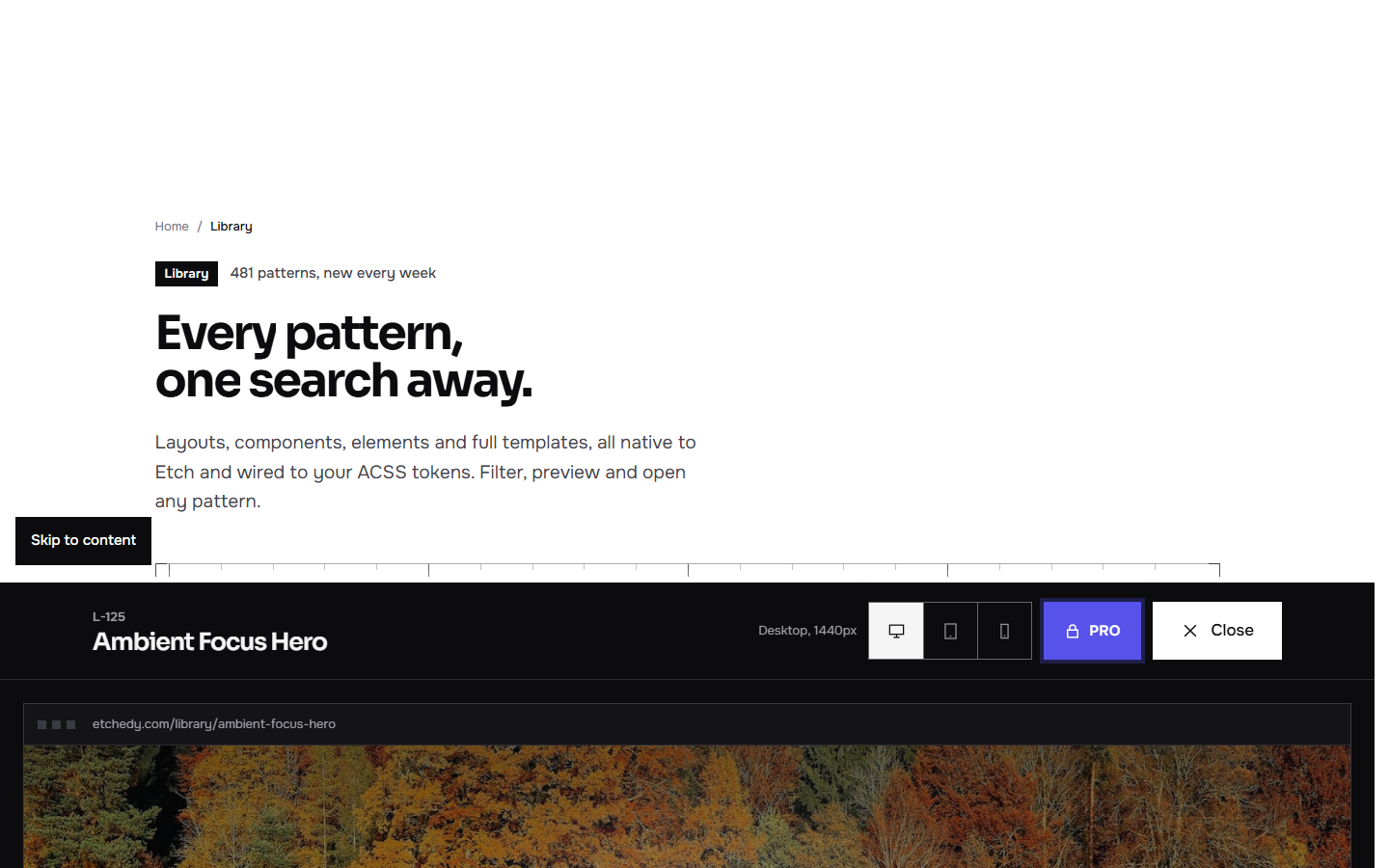
- The device buttons.
- The live preview, full width.
- Unlock with Pro, or the free download button, for this pattern.
- Close and go back to the list.