
 Compare Features LandingLanding page, 1 page
 Flowline SaaS LandingLanding page, 1 page
 Prismo Creative AgencyCreative, 1 page
 Velour Car DetailingLanding page, 1 page
Import and export
Two different things share this name, so here is each one.
Import a block from JSON
If someone sends you a block as JSON (copied from Etch), you can add it to your library.
What you need
Switch on Etchedy → Library settings → Agency tools → Import button. It appears for administrators.
- Click the Import buttonIt is the download arrow in the panel header.
- Paste the JSONFill in a name, a type and a category, then paste the component JSON into the box. Tags, a brand, a description and a demo URL are optional.
- Click ImportThe new item appears in the panel.
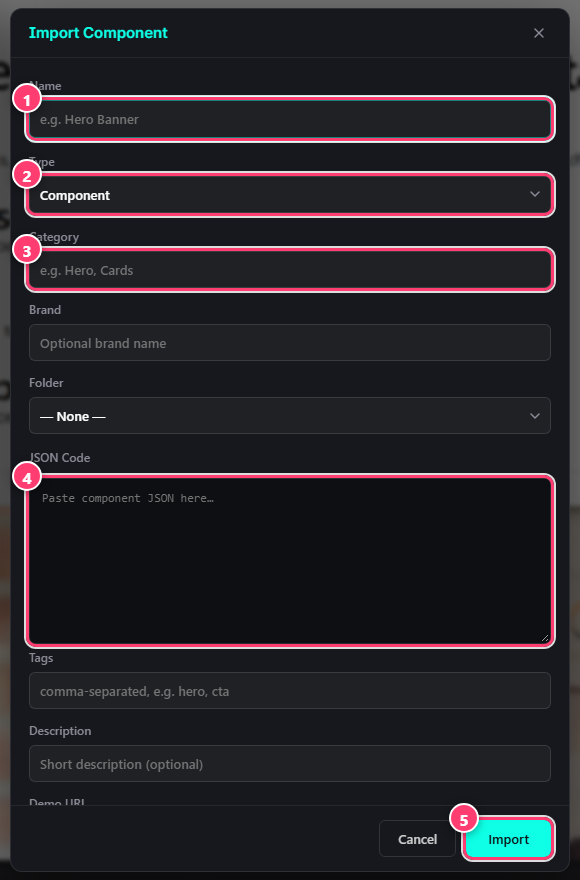
- Name of the new item.
- Type: Layout, Element, Component or Template.
- Category, for example Hero or Cards.
- The JSON box. Paste the copied block here.
- Import.
If the JSON is not valid, the dialog tells you which field to fix.
Export and import your setup
To move your folders, pins and saved items to another site, use Etchedy → Tools.
- Export downloads one JSON file. Untick Include component data for a smaller file with references only.
- Import takes that file (up to 10 MB). Choose Merge with existing to add to what is already there, or Replace existing to overwrite your folders and pins. Items that already exist are skipped.
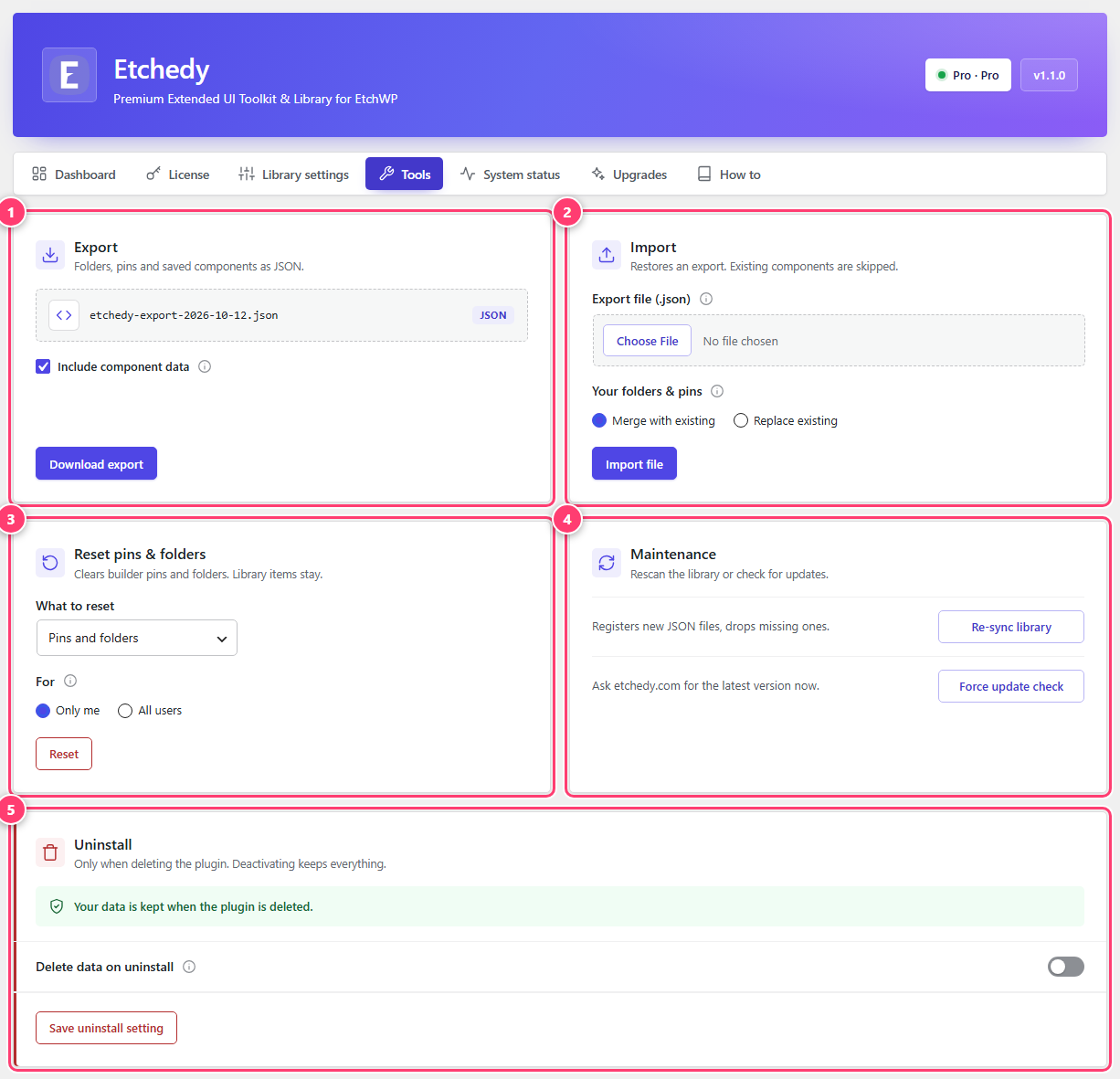
- Export: download your setup as a JSON file.
- Import: restore an export on this or another site.
- Reset pins and folders.
- Maintenance: re-sync the library, check for updates.
- Uninstall options.
Was this helpful?